
Auto-Promote Every New YouTube Video
Pick a channel once. Each time you publish a new video, Autopilot launches an ad campaign for it, using the targeting and budget you set.
How Autopilot Works
Set it up once. Every new video after that gets its own campaign.
- 01
Connect your channel
Pick your YouTube channel. Optionally choose one playlist — then only videos added to it get promoted.
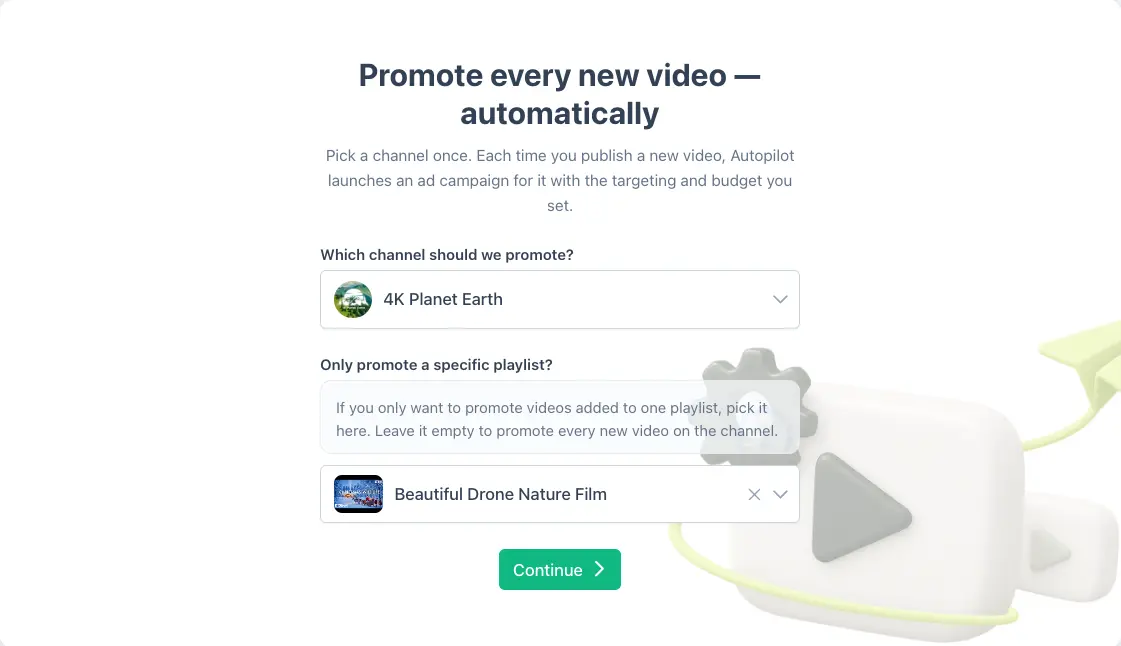
Start an autopilot: pick the YouTube channel and, optionally, one playlist to promote - 02
Set your targeting
Leave targeting on automatic and let Autopilot handle it, or fine-tune it yourself: your goal (views, subscribers or clicks), gender and age ranges, and the countries or cities to reach.
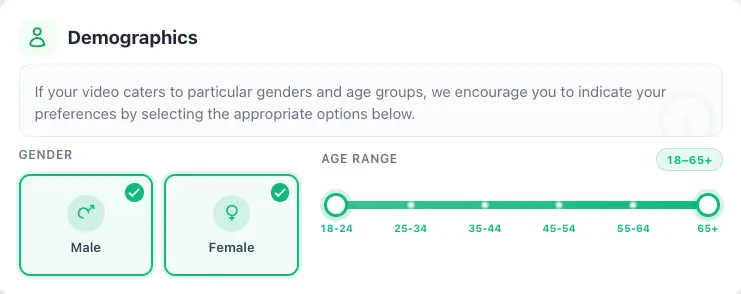
Demographics: target male and/or female viewers and an age range from 18–24 to 65+ - 03
Set your budget once
Choose a total or daily budget per video — from $50 — and the delivery speed. Every campaign Autopilot creates uses it, and changes apply only to future campaigns.
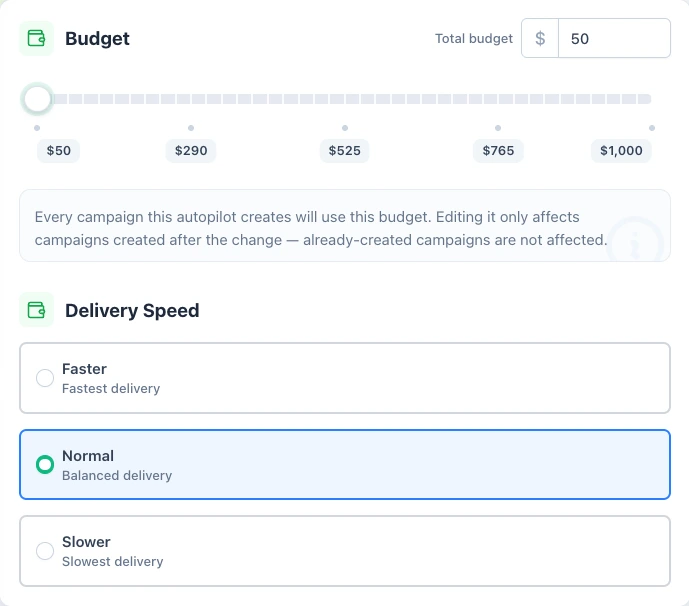
Budget per video with a slider and Delivery Speed options Faster, Normal and Slower - 04
Publish as usual
Autopilot checks your channel for new uploads regularly and launches a campaign for each new video, with AI-written ad text. You get an email after every launch.
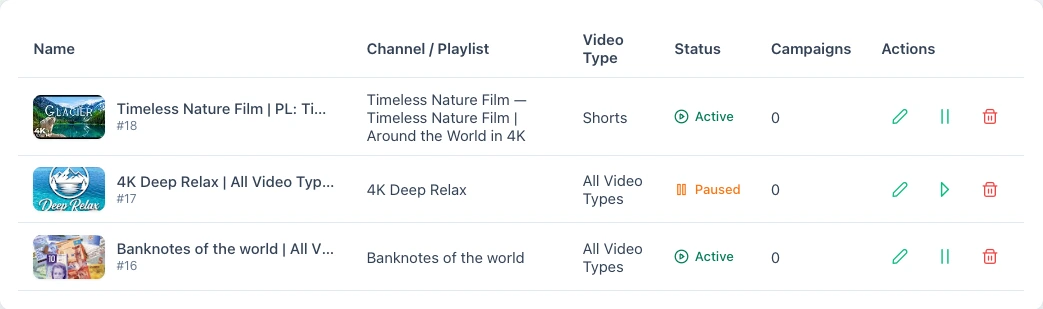
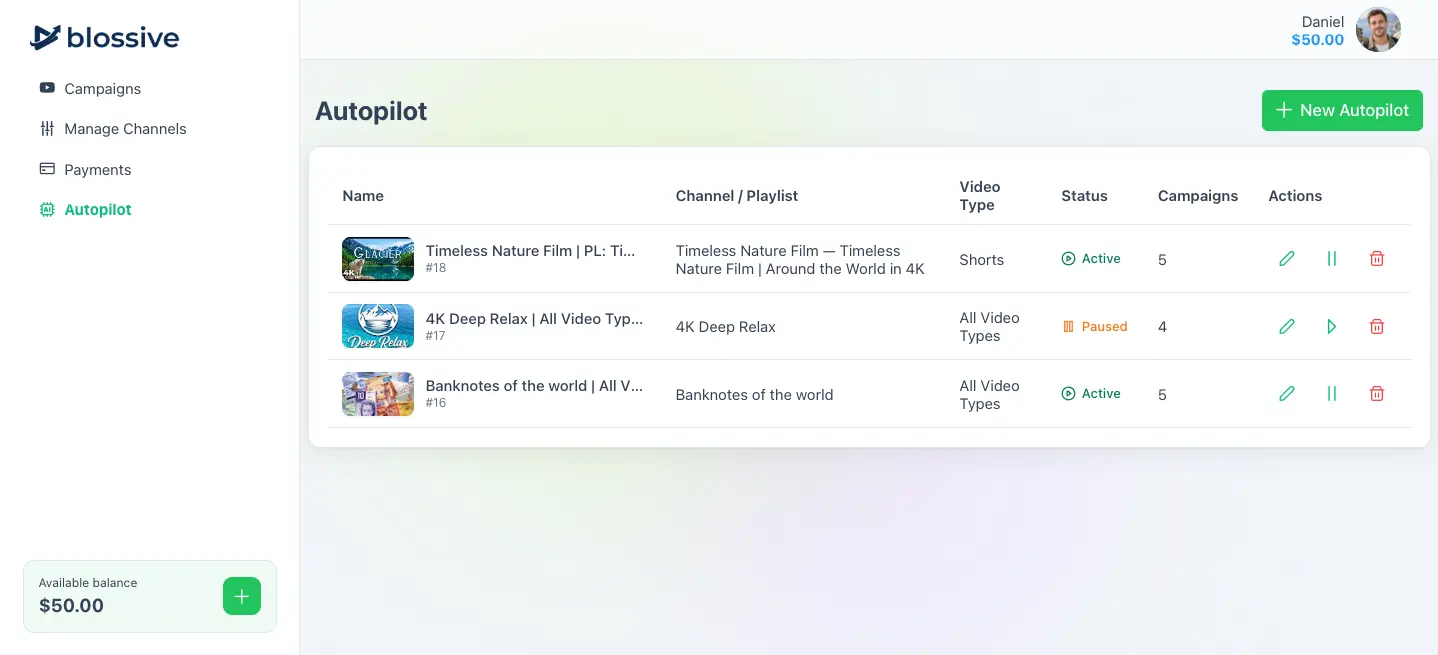
Autopilot table with channel, video type, Active or Paused status and pause, resume and edit actions
Built for Creators Who Publish Often
Autopilot takes the repeat work out of promoting every upload.
You publish regularly
Every upload gets promoted without setting up a campaign by hand each time.
Promotion starts while the video is fresh
Campaigns launch after each upload — even when you aren't online.
Set it and forget it
Already running Blossive campaigns? Autopilot does it for every new video.
Set It Up Once
Every campaign Autopilot creates uses these settings.
Whole channel or one playlist
Leave the playlist empty to promote every new video on the channel.
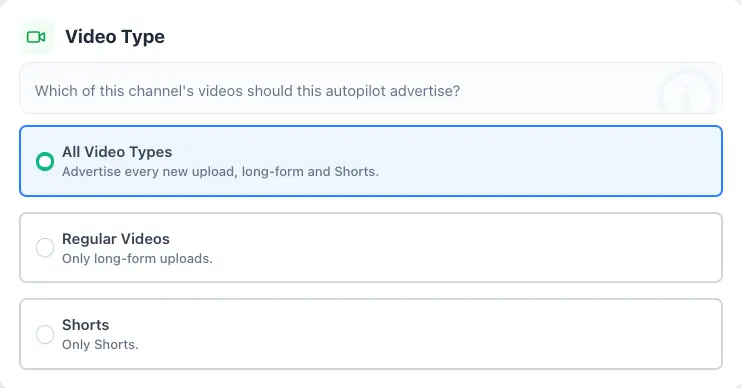
All videos, regular or Shorts
Promote every upload, only long-form videos, or only Shorts.
Launch now or after 12/24 hours
Start as soon as the video is detected, or let it collect organic reach first.
Views, subscribers or clicks
Send viewers to the video, to subscribe, or to your site — Instagram, Facebook, Linktree, Beacons.ai, Amazon, Airbnb, Google Business Profile, Yelp, Tripadvisor or a YouTube playlist.
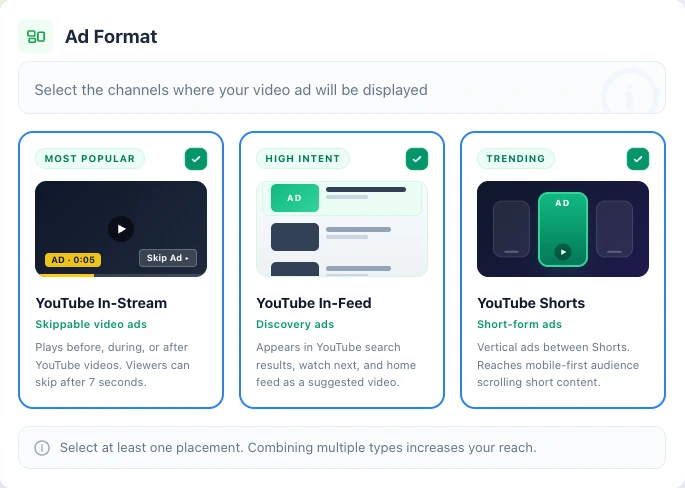
In-Stream, In-Feed and Shorts
Choose one or more ad formats. Shorts-only autopilots use the Shorts format.
Audience & locations
Gender, age ranges, countries, cities or a radius around a place. Worldwide by default.
Budget per video
Total or daily. Every campaign the autopilot creates uses it; changes apply to future campaigns only.
Delivery speed
Faster, Normal or Slower.
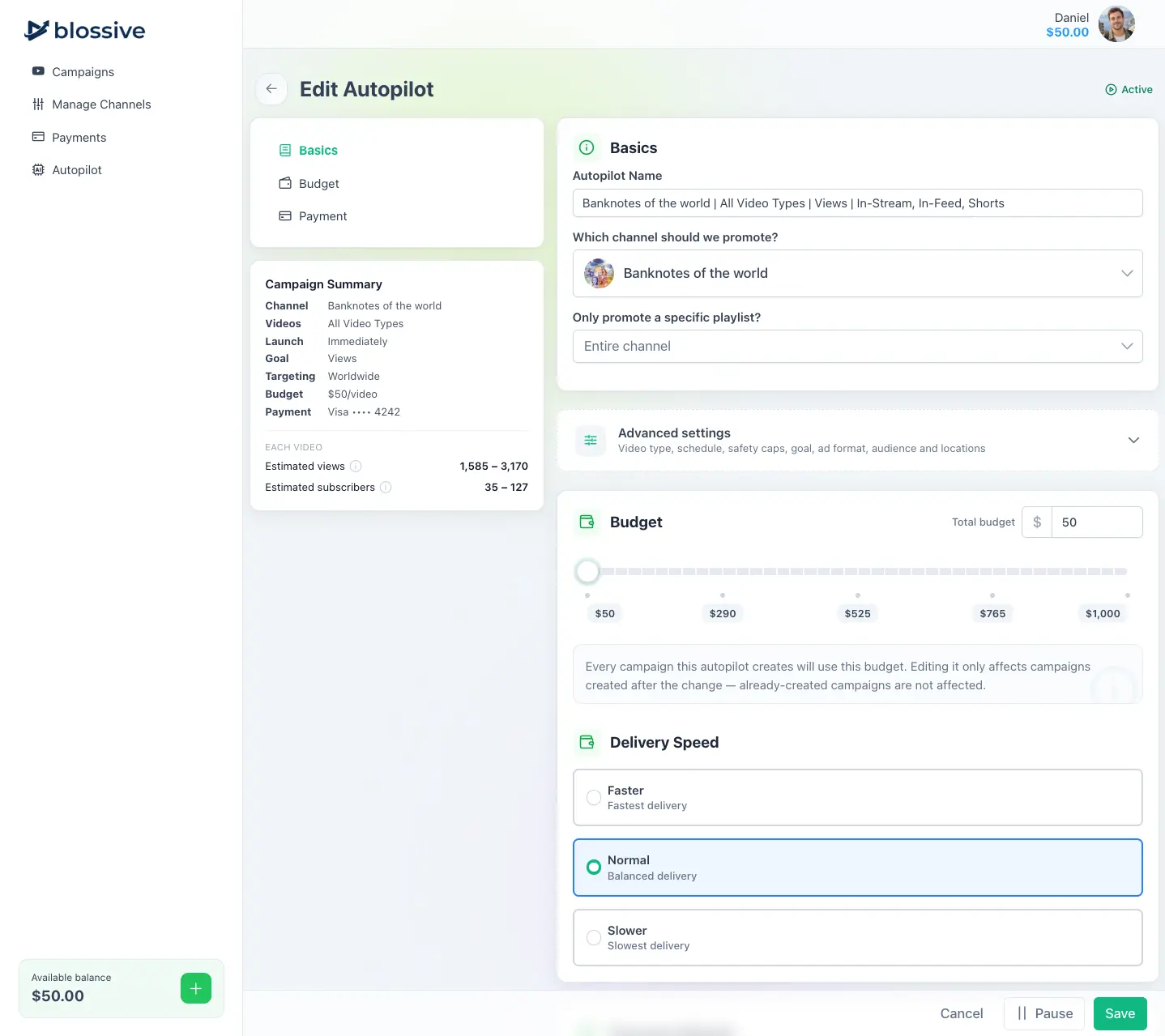
Campaign Summary shows estimated views and subscribers per video, based on your budget and countries. Estimates, not guarantees.
You Stay in Control
Autopilot runs on its own — within the limits you set.
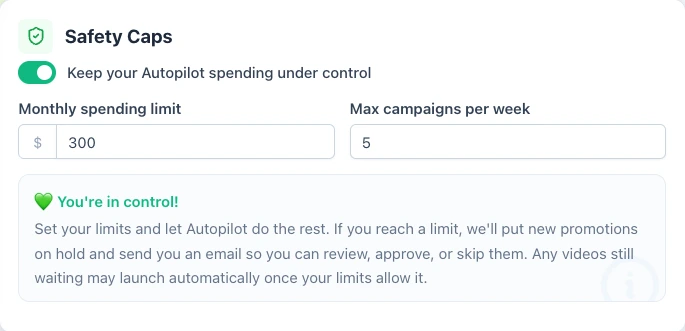
Safety Caps: you set the limits
Set a monthly spending limit and/or a maximum number of campaigns per week. Set your limits and let Autopilot do the rest.
- New promotions go on hold when a limit is reached
- You get an email to review, approve or skip each video
- Videos still on hold launch automatically once the limit allows it
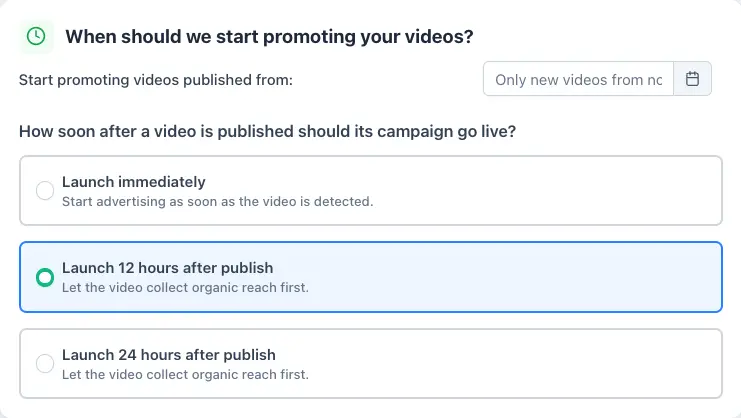
Launch timing: you decide when
Choose which uploads Autopilot promotes and how soon each campaign goes live.
- Only videos published from your start date are promoted — no surprise back-catalog spend
- Launch as soon as a new video is detected
- Or wait 12 or 24 hours and let the video collect organic reach first
Pause or resume anytime
From the autopilot list or the edit page.
Payment problems don't go unnoticed
If a card is declined, the autopilot stops with "Needs attention" and you're emailed, with reminders after 24 hours and 3 days.
No duplicates
Two active autopilots with overlapping settings for the same channel aren't allowed, and no video is promoted twice.
No surprise back-catalog spend
Only new uploads are promoted — from the creation date or the start date you pick.
Edits apply going forward
Campaigns that already launched are not changed.
No Extra Charge for Autopilot
You pay only the campaign budget for each promoted video — from $50 per video, charged to the card you choose. Add Safety Caps to limit monthly spend.
Frequently Asked Questions
Everything you need to know before turning on Autopilot.
No. Autopilot creates one for every new upload that matches your settings.
No. Only videos published after the autopilot is created, or after the start date you choose.
Yes. Choose video type "Shorts", and/or pick a playlist.
Right after the video is detected, or 12 or 24 hours after publishing if you prefer. Autopilot checks your channel for new uploads regularly.
There's no extra charge for Autopilot. Each launched campaign is charged its budget — from $50 per video — to the card you picked for that autopilot. You get an email for every charge.
Yes, with Safety Caps: a monthly limit and/or a maximum number of campaigns per week. Anything over the limit waits for your approval.
Yes. Pause it at any time and resume when you want.
Yes, with the Clicks goal. Supported links include Instagram, Facebook, Linktree, Beacons.ai, Amazon, Airbnb, Google Business Profile, Yelp, Tripadvisor and YouTube playlists.
Want to go deeper?
Promoting a single video right now? Promote YouTube video views with a one-off campaign. Growing the whole channel? Promote your channel , or read our guide on how to promote YouTube videos . Wondering how this compares to running ads yourself? Blossive vs Google Ads .
Promote Every New Video Automatically
Connect your channel, set your targeting and budget once, and publish as usual.
No extra charge for Autopilot. Pause anytime.